How to Change Sticky Notes Font Size, Color and Other Formatting
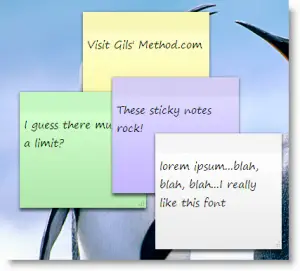
This tutorial explains how to change font size, color and other formatting or styling in Sticky Notes as a Windows gadget in Windows 7/8.
Sticky notes is one of the most widely used gadgets in Windows since Windows Vista. Even in Windows 8/8.1, people manage to bring back the gadget features and sticky notes is among the must-use gadgets of all time.
Normal fonts’ formatting in sticky notes isn’t enough if you are looking to jot down a large number of notes. You will sometimes need to bold, italic or even underline an important word or a phrase. You may also want to increase/decrease the font size of the texts in your sticky notes, applying bullets onto the phrases or align them accordingly. This post will show you how you can do all these with just a few keyboard shortcuts.
By default, Windows Sticky Notes will be installed and came along with your Windows as you first launch your Windows 7/Vista. If you are using a sticky note downloaded from the gadget gallery that is not the default Windows sticky notes, the methods in how to change sticky notes font size, colors and formatting in this tutorial may not work with other sticky notes.
How to Change Sticky Notes Font Size, Color and Other Formatting
In this tip, we will show you how to format text, change the text size, text color, or add bullets to make a list in Sticky Notes by using keyboard shortcuts in Windows 7/8/Vista.
- To format a word or a phrase in sticky notes, highlight the texts that you want them to be formatted while modifying or creating a sticky note.
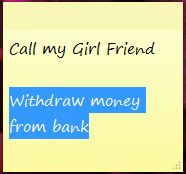
- Use the keyboard shortcuts listed below to apply formats of how you want the texts to be.
|
Keyboard Shortcuts
|
Description
|
|
Ctrl+B |
Bold text |
|
Ctrl+I |
Italic text |
|
Ctrl+T |
Strikethrough |
|
Ctrl+U |
Underlined text |
|
Ctrl+Shift+L |
Bulleted (press once) or Numbered (press twice) list |
|
Ctrl+Shift+> |
Increased text size |
|
Ctrl+Shift+< |
Decreased text size |
|
Ctrl+A |
Select all |
|
Ctrl+Shift+A |
Toggles all caps |
|
Ctrl+L |
Left aligns text |
|
Ctrl+R |
Right aligns text |
|
Ctrl+E |
Centers text |
| Ctrl+Shift+L |
Small Alpha list (3rd), Capital Alpha list (4th), small roman (5th), |
|
Ctrl+Scroll Wheel |
Increase/Decrease text size |
|
Ctrl+1 |
Single-space lines |
|
Ctrl+2 |
Double-space lines |
|
Ctrl+5 |
Set 1.5-line spacing |
|
Ctrl+= |
Subscript |
|
Ctrl+Shift++ |
Superscript |
|
Ctrl+Z |
Undo |
|
Ctrl+Y |
Redo |
|
Ctrl+X |
Cut |
|
Ctrl+C |
Copy |
|
Ctrl+V |
Paste |
Please also take note that when copying away your texts from your sticky notes, the formatting may not be the same when pasted else where. Besides, if you’ve accidentally deleted your sticky notes or if they simply went missing, the formatting of the texts in your sticky notes may make it harder to read from a recovered text documents as they also comes with all the tags that do the styling.