Taskbar Disappeared Missing Windows 8/7 | Restore Start Menu Bar Button Toolbar
There have been reports in the major forums that the Windows 7 or Windows 8 taskbar suddenly disappeared especially when the computer wakes up from sleep mode or the screen saver. This is one of the most commonly reported errors in Windows 8/7. This could caused by a variety of reasons and Microsoft has always been working on providing a solution to this issue.
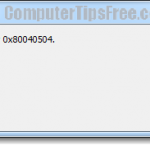
Below is a screenshot of what we have encountered as the Taskbar disappeared entirely and gone completely missing from our Windows 7 desktop (could be similar if taskbar disappeared in Windows 8). That’s weird, isn’t it? The start menu button is still there and functioning, but the rest are all gone. Not only that, if you right click the area where the taskbar is supposed to be, you get the right-click context menu for the desktop, as if it’s totally gone.

Related Post: Desktop Icons Missing Disappeared Windows 8 Windows 7
It can be the software we used that break the taskbar and causes it to disappear, but that also could be just an unsolved bug in Windows (there’s always bugs). Microsoft will always provide fixes and updates to issues such as this taskbar disappear bug. Always make sure that your Windows Update is on automatic and set to check for updates on a proper schedule. That’s how you get fixes, solutions, security updates, and other important Windows updates from Microsoft and that’s also how you fix most of your new bugs with new software. As for now, you can try the solutions below to temporary fix your problem.
Broken Registry – Taskbar Disappeared Windows 8/7
Like we have said before, software that have permission to alter your system files such as your explorer or components related to the taskbar functionality could cause a crash to them if it crashes itself. You will have to investigate and troubleshoot this matter yourself a little by recalling what software, program or application you’ve been using the last time the task bar disappeared from your Windows 8/7. Then, uninstall or just stop using the software if you’re sure that it is the one that causes the problem.
Well, it could also because the windows registry where the software’s settings are stored went wrong and caused the software to crash your taskbar. Windows registry is a one stop central database that store all the settings, options and configurations of your software, programs, applications and your core system files. Simply put, if it’s gone, your Windows wouldn’t even boot.
As you use your Windows, the registry could get cluttered up when you keep on installing new software and programs and that’s when bugs and errors start arising from no where and causes serious problems. Registry commonly has to be scanned and cleaned up gradually. It’s just like how you maintain your car. You can use a registry cleaner to clean up and fix the corrupted or broken registry automatically. We recommend Registry Easy.
Re-launch explorer.exe – Taskbar Missing Windows 7/8
This is a slightly advanced fix and recommended only for advanced users. This works for most people who had the problem before. But, it’s a temporary solution and the problem may just come back anytime. Follow the steps below to restart your explorer.exe:
- Hold Ctrl + Alt, then press Del.
- Select the last option – Start Task Manager.
- From the task manager window, go to the Process tab.
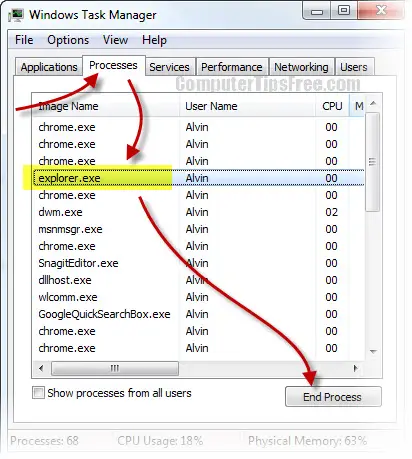
- Locate and select explorer.exe, and then click End Process to terminate the process.
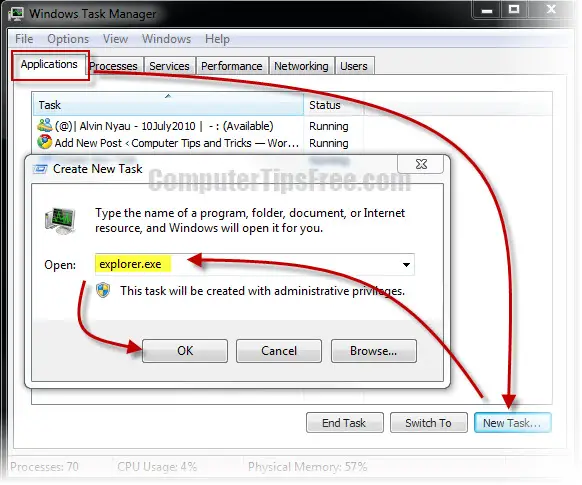
- Now the Start menu should be gone too. Go to Applications tab.
- Click on New Task button.
- Type explorer.exe into the open field, and then hit OK.
- As soon as it launches successfully, your Taskbar should re-appear again.