How to Update Drivers in Windows 8/7/8.1/Vista for Free
This tutorial explains how to update drivers in Windows 8/7/8.1/Vista for free. A driver is a program that enables communication between your computer and a hardware (such as a sound card, video adapter, network adapter, printer or scanner), allowing the device to work correctly with your computer. That said, if a required driver is absent, the device which its driver is missing will not work properly or simply won’t work at all.
Installing a driver can be an awkward task especially for novice computer users. Thus, to assist people who have troubles installing or updating drivers for their computer, we’ve listed several simple ways to install or update a driver in Windows 7 and Windows Vista.
How to Update Drivers in Windows 7/8/8.1 via Windows Update
If you are on a computer with Windows version 7 or newer, Windows Update will usually be able to automatically detect your hardware and install their respective drivers. Always be sure to turn on the automatic Windows Update. However, updating drivers this way will not guarantee that you will get the correct driver or even the latest driver. It is still highly recommended to update drivers manually by going to their respective manufacturers’ websites. Hardware, especially graphic cards, often requires up to date drivers in order to run the latest programs, applications or games. Do a search on Google using the brand and model of your hardware to get the latest drivers.
How to Update Drivers through Device Manager
This is probably the most simple way to update a driver, but not all drivers can be found via this method.
Go to Start -> Control Panel -> System Maintenance -> Device Manager. From there you can see a list of all devices currently connected to your computer. Select and right-click the device you want to update the driver for, and then click on Update Driver Software. You will be given two options to install a driver:
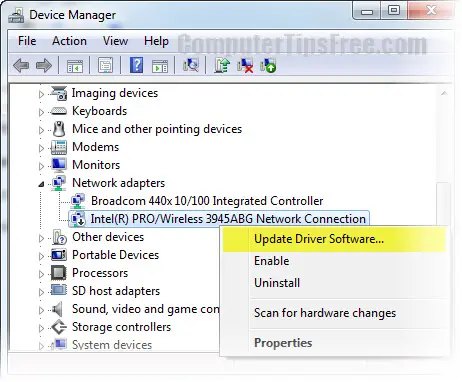
Search automatically for updated driver software: This option allows Windows to search your computer or the internet for the most appropriate driver software for your device automatically. As we’ve said before, some drivers cannot be found via this option, and if this happen to you, you need to proceed to the second option or Method 3.
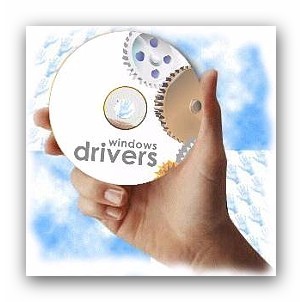
Browse my computer for driver software: Select this option only when you have an existing driver installer on your computer. A driver CD usually comes along with the device you bought. If you have the driver CD, insert the CD into your CD-ROM and then browse to your CD manually via this option.
Manually update drivers by searching for the drivers on the Internet
This is the best and the most common method power users used to install or update a driver. For sure, the most appropriate drivers are those that you can download directly from the device manufacturer’s website itself. All you have to do is to check on the brand and the model of the hardware you want to install the driver for, and then take these as your keywords to search on Google. For example, if you have a Nvidia Geforce 9800GTS video card, search on google using these keywords: “Nvidia Geforce 9800GTS driver download”.
Fully automated drivers detection and installation
If all the above methods can’t get you the driver you were looking for, we recommend Driver Robot (not free). Driver Robot is a well known utility that offers to scan your PC for incorrect and out-of-date drivers, and automatically download the latest drivers for your computer. Driver Robot has the industry’s best hardware detection. It correctly identifies 100% of all consumer hardware devices. If it’s in your computer, Driver Robot can see it. With its perfect hardware scan, Driver Robot ensures you always get the right driver.