Filed in » Pretty Good Software Downloads

How to Edit or Convert Subtitles?

Submitted by on 12 Apr 2008 28 Comments

Learn How to add subtitles to movies if you don’t know how yet. Sometimes the subtitle’s timing doesn’t match exactly to the sound of your movie at hand. There are several tools on the internet which can be used to fix such problems.

Among all those tools, I recommend Subtitle Edit(SE). This tool can handle SAMI (.smi), SubRip (.srt), MicroDVD (.sub), Substation Alpha(.ssa) and SubViewer formats. You can edit the texts or adjust the times of a subtitle with just a few simple steps. You can even convert any text file or subtitle file to 4 formats which are SAMI (.smi), SubRip (.srt), MicroDVD (.sub) and Substation Alpha(.ssa).
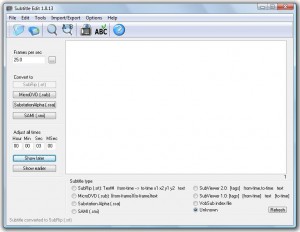
subtitle-edit-1813
In this tip, I will be showing you the things that you can do with this tool.
- How to edit the times of a subtitle?
- How to convert subtitles from a format to another?

How to edit the times of a subtitle?

  • Open Subtitle Edit by double clicking its shortcut icon on dekstop.
  • Click the Open button on the top left corner of SE and then select the subtitle file that you want to edit.
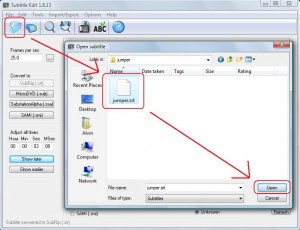
  • open-edit-subtitles-adjust-timing

  • To adjust the timing of a subtitle, simply use the tools under “Adjust all times” section. For example if your subtitle shows up on the movie 3 seconds before the sound, you should type a value of 3 in the box of Sec and click the Show later button. Your subtitle will then shows up with correct timing.
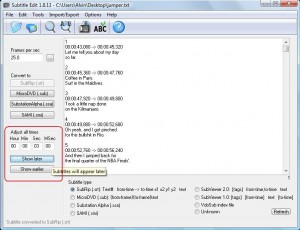
  • adjust-times-of-subtitles

  • However, you would not always have the correct prediction of the timing between subtitles and sounds. You can make a smart guess and then make a change. After making changes, you don’t actually need to completely close SE to run the video. You can save it whenever u make changes just with a simple key CTRL+S and run the video with SE opening. If the subtitle is still incorrect and need to make any changes again, just go back to the opened SE and edit your subtitle straight away instead of starting SE all over again.

How to convert subtitles from a format to another?

  • Open Subtitle Edit by double clicking its shortcut icon on dekstop.
  • Click the Open button on the top left corner of SE and then select the subtitle file that you want to edit.
  • open-edit-subtitles-converter

  • To convert the subtitle’s file format to another, simply click the button that you want the format to be under Convert to section. Refer image below.
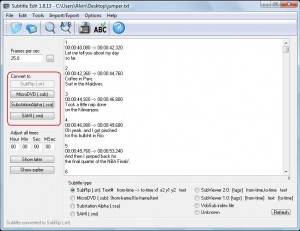

convert-subtitles

Please make sure you Subscribe to Us for more useful tips and interesting tricks!

If you like this article, please share it to the world by pressing the +1 button.
share on twitter
Software of the year - SpeedUpMyPC 2009Software of the year - SpeedUpMyPC 2009

Subscribe, Follow, and Like!

Enjoy the article so far? Be the first to our articles and get latest updates on useful tips, tricks, freebies and more!
Free Tips and Ebooks
Please check junk folder for activation link.
By subscribing to us, you'll get:
1. Important News on Apple, Google, etc
2. Latest tech tips and gadget hacks
3. Free giveaways every now and then
Your email privacy is 100% guaranteed.
  • truong

    I think this software is very good but it will better if it supports more languages such as Vietnamese, etc

  • truong

    How can I edit an file as below by using this software? (*.srt)

    5
    00:01:55,950 –> 00:01:57,910
    Harry!

    6
    00:01:57,910 –> 00:01:59,850
    Mở cửa ra!

    7
    00:02:09,310 –> 00:02:12,010
    Dượng Vernon, xin dượng ký tờ
    đơn này giúp cháu.

  • http://www.alvinlife.com Alvin Nyau

    It seems like you want to show your subtitles exactly 1.96 sec later.
    Just do what I’ve told you above. For example, you want to show your subtitle at time 00:01:57,910 instead of 00:01:55,950.
    Take the value of 00:01:57,910 minus 00:01:55,950 and then write it into the box as shown above and click “show later”.

  • http://www.vso-software.fr/products/convert_x_to_dvd/ convert to DVD

    thanks very much for this clear guide it helped me use my subtitles with ConvertXtoDVD.

  • http://rapid-plus.blogspot.com Bhaskar

    Thanks. very helpful guide.

  • Cacho

    You can convert your subtitles with SubtitleSync.com.ar and you don’t have to install anything.

  • Thank you!

    :D

  • http://sintricare.com.pt/granny-big-boob-on-the-beach-videos/includes/bunnygirl-hentai9.html Mae

    Thanks! It does work for me!

  • Tanvir

    wish this page could help more people .
    Tanvir

  • http://cocoadream.info/forum/_disc6/000012de.htm Goldthread

    thak you1 =)

  • NRS

    1. Rename the “abc.srt” file to “abc.txt”
    2. Make the necessary changes to the dialogues
    3. Save the changes and again rename the file to “abc.srt”

    There is no need of any special SRT editor.

    Try it and let me know..!!!

    Good Luck…

  • http://www.alvinlife.com Alvin Nyau

    Thank you all for visiting!

  • Nikse

    Nice tutorial, thx :)

  • http://www.alvinlife.com Alvin Nyau

    @Nikse
    You’re welcome, dude! I’m glad it did help you out!

You wanted to know
how do you change the timing of an smi file edit subtitles how to edit srt edit sub how to edit subtitles how to use subtitle modifier editing sub files how to edit sub convert subtitle srt file manipulate how to patch subtitle file how to make an srt file match the speed of the movie how to edite srt how to edit subtitles timing how to change sub how to edit sub files subtitles converter subtitle edit time