How to Change Font Size in Internet Explorer 11/10/9
If you find that the font size of certain web pages is too small and difficult to read, you can in fact increase the font size of the web pages displayed on screen in Internet Explorer. This tutorial will show you 3 simple tricks to change font size in Internet Explorer IE 11/10/9.
If you are looking for ways to increase/change font size in other popular browsers, please visit: how to change font size in Google Chrome or how to increase font size in Mozilla Firefox.
Update for IE11/IE10/IE9: Due to the web font rendering in the latest IE versions, the fonts in some webpages that are not “IE11-friendly” yet might be smaller than usual. The most simple way to increase or change the font size of a webpage in IE 11/10/9 is to zoom the entire page.

Method 1: How to Increase or Change Font Size in IE 11/10/9
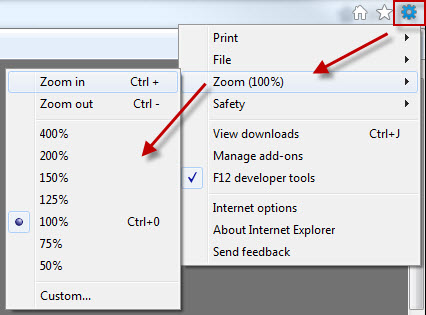
Click Tools beside the tabs on the topmost area (or Alt-X shortcut key), click Zoom and select any zooming percentage you like.
Method 2: Change Font Size in IE 11/10/9
Another method to change font size in Internet Explorer is by using your keyboard and mouse which is much more simple:
- Point the mouse cursor to anywhere on the web page.
- Hold down the CTRL key and spin the wheel of your wheel mouse up and down.
- As you do the text will either increase or decrease depending on which way you move your wheel.

If you do not have a wheel mouse, there is a windows shortcut that is able to change font size in Internet Explorer. Follow the steps below:
- Open any web page using Internet Explorer.
- Hold down the CTRL key, then press + to increase the font size, or press – to decrease the font size.
Tricks to change font size in IE 8 or older:
- Open Internet Explorer.
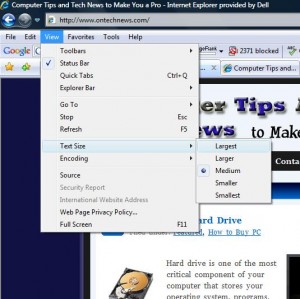
- From the menu bar, click on the “View” menu.
- Point to “Text Size”, then choose the text size that best meets your needs.
Trick 2: – Change Increase Text Font Size in Internet Explorer
If the above method doesn’t work for you, it’s probably because of the particular website does not meet the proper design guidelines and their font sizes are “hard-coded”. This weblog, computertipsfree.com for some reason do not meet the accessibility guidelines, therefore you cannot change the font size of computertipsfree.com by using the method above in Internet Explorer. However, we can still force the font to change by overriding their font settings. To do so, folow the steps below:
- Open Internet Explorer as usual.
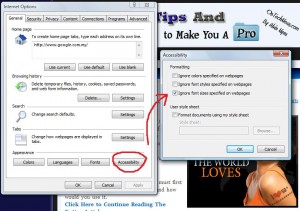
- Click on the “Tools” menu from the menu bar, then select “Internet Options”.
- The “Internet Options” window will then pop up, click on the “Accessibility” button located at bottom right corner.
- In the “Accessibility” window, you can choose to:
- Ignore colors specified on Web pages.
- Ignore font styles specified on Web pages.
- Ignore font sizes specified on Web pages.
- For example if you want to ignore the setting of font size of web pages, simply check the box of “Ignore font sizes specified on Web pages”.